LaunchPad gives Brevard Public Schools students and staff a single entry point for digital learning tools. Instead of juggling passwords or searching for various sites, users log in once to reach every application needed for classwork or teaching. ClassLink, which handles education-system integrations, runs a customer-service and documentation platform that supports these portals. Users can find troubleshooting help and support through its official help center.
Logging In to Brevard LaunchPad
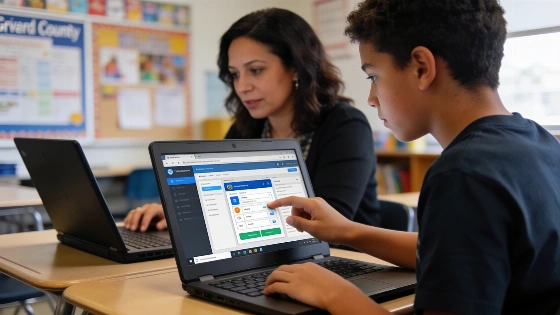
To begin, open your web browser and go to the official Brevard LaunchPad website. Staff may see a Sign In with Microsoft prompt, while students usually click the standard Sign In button. Students enter their Student Number as the username and use their school password. After signing in, the dashboard appears with a My Apps screen. Each icon stands for a different educational tool or resource. Clicking an icon opens that application directly from the dashboard.
Common Troubleshooting Steps
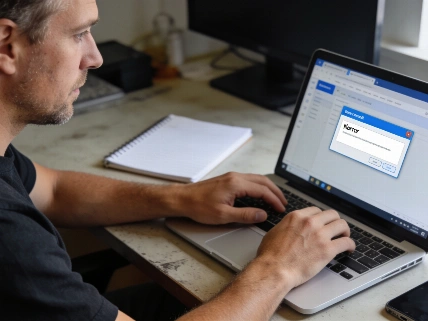
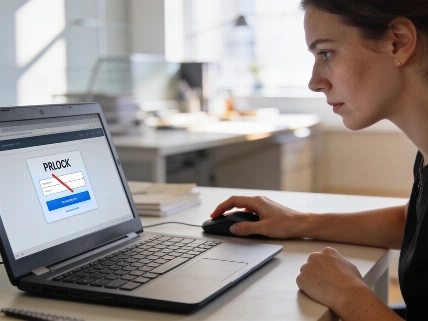
Sometimes, users run into access problems. If logging in fails or a blank page appears, try clearing your browser's cache and cookies, switching to another browser like Chrome or Edge, and making sure you are not signed into a personal Google account in the same window. Restarting your device can also fix stubborn issues. These steps are standard for resolving access problems with education portals and are backed by documentation from providers such as ClassLink.
Frequently Asked Questions
- Forgot your password? Students need to contact their school's Tech Support or ask a teacher for a password reset. The main login page does not always let students reset passwords on their own.
- Blank LaunchPad page? This can happen if the internet connection drops or a browser extension blocks the site. Turn off extensions and reload the page to see if access returns.
- Can LaunchPad be used at home? Yes, the portal works from any device with internet access. The same URL is valid at school and at home.
- Missing textbook app? Some apps are grouped in folders on the dashboard. If you do not see a needed app, ask your teacher to assign it to your profile.
- Mobile access? The ClassLink LaunchPad app is available in app stores. After installing, search for Brevard County in the app to connect to your school resources.
Additional Notes on Privacy and Cookies
The LaunchPad website uses cookies to deliver its services and analyze traffic. By using the site, users accept the use of cookies as described in the site's information notice.
Brevard Public Schools also offers a catalog of professional development and staff resources, which is available through the district's official site Professional Learning Catalog.