With Google Maps, users can quickly locate businesses, addresses, and points of interest from a desktop. Knowing how to use the platform’s search tools helps surface results that match your needs and account activity.
Searching for a Place or Address
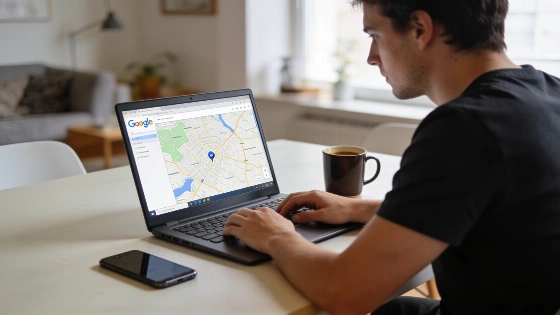
To find a specific place or address, open Google Maps on your computer. Type the name or address into the search box, then press Enter or click the search button. Google Maps uses Autocomplete to suggest businesses and points of interest as you type. This helps users zero in on the right location by offering relevant options. Entering a business name or address brings up markers on the map. Marker style and interface details can differ by device, region, and product version, according to the Google Maps Platform documentation team.
Finding Categories and Types of Places
To search by category, such as restaurants or gas stations, enter the category in the search box. Google Maps may display personalized results below the box based on your account activity. Clicking a result shows more details about that place on the map. The platform treats place-type searches (like "restaurant") differently from general text queries, so results may differ from searching for a business name or address. For broader searches, adding both the category and a geographic area can help narrow results. This workflow—using autocomplete for queries, nearby search for geography and place types, and text search for broader requests—lets users find a single known spot, all places of a type, or a location matching a natural-language description, as described by the Google Maps Platform documentation team (Google Maps Platform).
Filtering Search Results
After searching for a business or place type, filters can help narrow the list. Filters include price (for restaurants), opening hours (to show only places open now), and hotel details (like check-in dates and star ratings). These options help match your preferences or schedule. Google’s Maps Platform materials note that Nearby Search lets you look for places within a set area and refine by place type, while Text Search returns information about a group of places from a single query and location. These models focus on either a defined area and place classification or interpreting natural-language descriptions.
Sharing and Managing Recent Searches
Google Maps tracks your recent searches, making it easier to revisit or share them. To see your recent searches, click the "Recents" tab on the left side of the interface. Here, you can view, save, or share searches. To save, select the searches and click "Save" at the bottom. Add them to an existing list or start a new one. To share, select searches and click "Share" to copy them to your clipboard or paste them into an email or document. The look and availability of these controls can change depending on device, region, and account status.
Tips for Effective Searches
- Look up specific businesses, such as Starbucks.
- Find types of places near a landmark, like cafe near Ciutadella Park.
- Filter by city or province, for example, supermarkets in Reus Tarragona.
- Use postal codes, such as gas station in 08025.
- Search for intersections, like Diagonal and Passeig de Gràcia.
- Enter latitude and longitude coordinates, for example, 41.40338 2.17403.
- If signed in, search for contacts by name.
Getting More Information About a Place
Clicking a marker on the map brings up details like address, postal code, opening hours, phone number, website, and user ratings. On supported iPhone models, features such as 3D Touch allow quick actions, including saving a place or getting directions.
Understanding Local Results
When searching for businesses or places near your location, Google Maps ranks local results by relevance, distance, and prominence. Paid content is labeled and does not affect the order of organic results. Personalized recommendations may appear if you are signed in and have enabled activity settings. The Google Maps Platform documentation team notes that the platform does not set a fixed universal result limit, ranking percentage, or accuracy rate for search results, and the interface may change over time.
Additional Features and Privacy
Google Maps includes a "Find your phone" feature for locating lost devices. For privacy, searching for people by phone number is not supported, but you can see locations shared with you through Location Sharing. For more on sharing your real-time location, check Google's help resources. The platform is part of a larger ecosystem with structured place data, geographic search, and business-discovery tools, and is not subject to a specific regulatory decision or government enforcement action regarding its basic search functions.