Google's unusual traffic warnings can interrupt research, online study, or lesson planning, even when users think their activity is routine. These alerts show up when Google spots search patterns that look automated coming from your connection. That can happen because of browser extensions, research tools, shared networks, or VPNs. For students, teachers, and independent learners, knowing how to fix these interruptions is key to keeping access to reliable search results.
What Triggers Google Unusual Traffic Alerts?
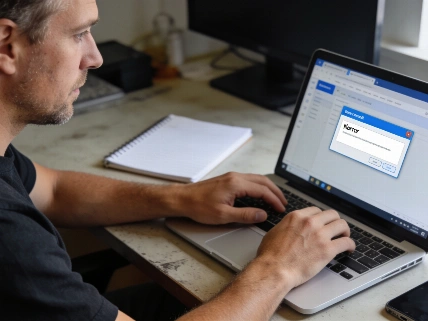
Google sends unusual traffic warnings when it sees search activity that mimics automated requests. This might occur if a browser extension or research tool sends repeated queries, if several users share the same public IP address, or if a VPN or proxy is active. Official guidance from Google Search Help lists several causes: automated scripts, browser extensions generating repeated requests, malware, VPN or proxy connections, and other users sharing the same public IP address. The warning, often worded as “Our systems have detected unusual traffic from your computer network,” does not by itself mean the individual student, teacher, or Google account has been compromised. The signal may reflect activity elsewhere on a university, school, office, carrier-grade NAT, or VPN network. The shared-IP issue matters in educational settings because many devices can reach Google through one institutional gateway, so one user’s traffic pattern can affect others.
VPN and proxy use can also set off the warning because multiple customers may appear to Google as a single exit address, and some tunnel services may have an IP reputation linked to earlier automated activity. The same applies to institutional networks: Google may see the combined behavior of students, staff, classroom devices, and background software, not just one browser session. Browser extensions, ranking monitors, research automation, scripts, and scheduled jobs can send repeated or parallel requests without a visible search page. This makes it important to diagnose whether the issue is network-wide or device-specific before an administrator changes institutional infrastructure or a learner removes privacy software.
Step-by-Step Troubleshooting for Learners and Educators
To find and fix the source of unusual traffic warnings, change one variable at a time and watch for changes. Here are practical steps for educational users, based on official Google guidance:
- Complete the CAPTCHA if prompted. The immediate user-facing step is usually a reCAPTCHA or similar human-verification prompt. Normal searching may resume if Google accepts the verification. If the CAPTCHA fails to load or repeats, check that JavaScript is enabled and your browser supports the verification system.
- Pause automated tools and browser extensions. Stop any scripts, research tools, or scheduled searches that might send automated requests. This helps narrow down the source. Ongoing automated requests can keep the trigger active, so pause SERP or rank-tracking tools and suspicious extensions before testing again.
- Test searches with and without VPN or proxy connections. If the warning disappears when you disconnect from a VPN or proxy, the route or shared exit IP is likely involved. If the warning happens only through one VPN provider or exit location, the provider may need to check the affected address or offer another route. Keep in mind, changing your IP address can affect privacy and search personalization.
- Try a different browser on the same device and network. If searches work in one browser but not another, review extensions and settings in the affected browser. Testing with a clean browser profile or private window can help rule out extension conflicts.
- Switch between Wi-Fi and mobile data on your device. On a phone, turning off Wi-Fi and using mobile data can show whether the issue is tied to your home or institutional network. If warnings appear only on Wi-Fi, focus on that network; if only on mobile data, check your mobile provider or VPN settings.
A practical diagnostic sequence is to compare the affected browser with a private window or another browser, disable extensions one by one, and then test the same device through a trusted alternate connection like a phone hotspot. If every device on the school or household network gets the warning, administrators should check the gateway, connected devices, and automated services running behind the public address. If only one computer triggers the warning across multiple networks, browser automation, an unwanted extension, malware, or a scheduled task becomes more likely and calls for a security scan. Controlled one-variable testing works better than repeated refreshes or opening the challenge in multiple tabs, which can complicate diagnosis.
Special Considerations for iPhone and Shared Networks
On iPhone, compare results using Wi-Fi and mobile data. If you use features like iCloud Private Relay or a VPN, test each separately. If the CAPTCHA page fails to load or complete, check Safari settings and content blockers. In shared networks, such as schools or libraries, multiple users may trigger warnings if they share a public IP address. Google’s guidance notes that “other people on a shared network, such as a school or business,” can contribute to the warning, and the issue may reflect combined network activity rather than a problem with one device.
Managing Automated Research and Data Collection
For users who rely on automated tools for research or data collection, reduce the number of simultaneous requests, cache repeated queries, and avoid uncontrolled retries. Changing your IP address alone will not fix issues caused by too many automated searches. If you use professional proxies, check the IP reputation and session setup before replacing them. Some services offer IP fraud score checks, static ISP proxies, mobile data plans with unlimited traffic, and rotating residential proxies with sticky sessions. Choose infrastructure based on your needs, session duration, and location requirements. Google’s guidance for administrators is to find and block the automated traffic before normal access is expected to return, rather than changing every student’s browser or forcing users to drop privacy tools.
Does a Google Unusual Traffic Warning Mean Your Account Was Compromised?
Getting this warning does not automatically mean your device or Google account has been hacked. Automated requests or activity from other users on the same connection are common causes. However, if you see unfamiliar logins or unauthorized account changes, follow Google's account security steps right away. Google’s guidance focuses on completing human verification, finding automated traffic, checking for unwanted software, and looking into shared connections. The issue is handled as an automated-abuse and traffic-management function, not as a regulatory sanction against a school, teacher, or student.
When to Seek Additional Support
If warnings continue after all checks, document your troubleshooting steps and share them with your network or proxy provider. Clear details about when and how the warning appears will help support teams investigate the issue efficiently and avoid repeated troubleshooting. Disconnecting a VPN or proxy can be useful as a diagnostic test, but it changes the user’s privacy and routing conditions and should not be seen as a universal fix. If the warning appears only through a VPN or proxy, record the affected route and contact its operator. If it persists on regular connections, review recently installed extensions and applications, check startup or scheduled tasks, and run an updated reputable malware scan. There is no guaranteed resolution time, fixed IP reputation reset period, or formal appeal process for every case, as confirmed by Google Search Help.