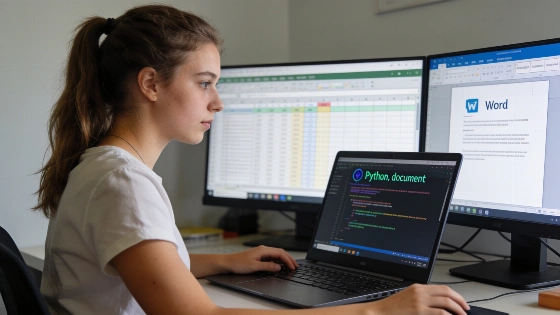
Managing personalized documents for member lists or event invitations often means repeating the same steps: select records, fill a template, and generate a document for each recipient. Mail merge, usually tied to Microsoft Word, is at its core a data transformation task. With Python, the python-docx and openpyxl libraries let you build this workflow yourself, giving you direct control and a chance to sharpen your programming skills.
Understanding the Inputs
To begin, gather two files: a spreadsheet with your data and a Word document as the template. In this example, the spreadsheet is an .xlsx file with columns for First_Name, Last_Name, Plan, Renews, and Paid. There are 40 member records, with 12 marked No in the Paid column. The template is a one-page .docx letter using placeholders like NAME, PLAN, and DATE in its paragraphs.
Microsoft defines mail merge as connecting a main document to a data source and inserting personalized fields into letters or other outputs. Supported data sources include spreadsheet-style lists, and field names must match the headings in the connected source. Microsoft Q&A contributor Doug Robbins states, "The name must exactly match the column heading in the connected data source." (Microsoft Q&A guidance).
Reading the spreadsheet into Python is direct with openpyxl:
import openpyxl
ws = openpyxl.load_workbook("members.xlsx", read_only=True).active
rows = [[str(c) for c in r] for r in ws.iter_rows(values_only=True)]
records = [dict(zip(rows[0], r)) for r in rows[1:]]
This code loads the data into a list of dictionaries, each representing a member and using the header row as keys. These keys match the fields in your template. Using openpyxl.load_workbook(..., read_only=True) follows the library's optimized read-only mode for handling large workbooks, as noted by the openpyxl maintainers. In this mode, the workbook opens without loading the full editable structure into memory, which is efficient for sequential input processing. The official documentation also notes that a read-only workbook must be closed after use with the close() method, which matters for resource management in reusable programs or workflows that process many files (openpyxl documentation).
Filtering and Stamping Records
The main step in mail merge is choosing which records to include and stamping their data into the template. In Word, fields are stored as instructions like MERGEFIELD First_Name. With Python, you use placeholder words in the template and replace them with actual data. Microsoft’s native mail merge uses merge fields inserted through the Mailings interface, while the Python method searches for literal placeholder text and replaces it in code. Both methods can produce similar letters, but they differ in field behavior, formatting, error handling, and compatibility with later Word merge operations. Microsoft’s guidance tells users to select recipients before inserting merge fields, while the Python approach handles that association in application code.
The function below shows how to merge records into a Word document using python-docx and copy for deep copying elements:
import copy, docx
W = "{http://schemas.openxmlformats.org/wordprocessingml/2006/main}"
FIELDS = {"NAME": "First_Name", "PLAN": "Plan", "DATE": "Renews"}

def merge(template, records, keep):
    out = docx.Document(template)
    body = out.element.body
    sect = body[-1]
    tmpl = [copy.deepcopy(e) for e in body if e is not sect]
    for e in [e for e in body if e is not sect]:
        body.remove(e)
    first = True
    for rec in filter(keep, records):
        if not first:
            sect.addprevious(docx.oxml.parser.parse_xml( '
' ))
        for el in tmpl:
            el = copy.deepcopy(el)
            for t in el.iter(W + "t"):
                for ph, col in FIELDS.items():
                    t.text = t.text.replace(ph, rec[col])
            sect.addprevious(el)
        first = False
    return out

merge("letter.docx", records, lambda r: r["Paid"] == "No").save("out.docx")
This script copies the template body for each selected record, swaps placeholders for actual data, and inserts a page break between letters. The keep function filters records, so only those with Paid set to No are included. The result is a merged document with personalized letters for each recipient. Microsoft’s documentation describes this as adding personalized content to your letter through merge fields (Microsoft Support).
Handling Placeholder Splits in Word Documents
A subtle issue can occur when placeholders like NAME are split across multiple runs in a Word paragraph. Word may break a word into several runs due to formatting or editing history, which can cause simple replacements to fail. In the test letter, each paragraph is a single run, so replacements work as intended. If NAME is split as NA and ME, a basic replacement will not work. The robust fix is to join the text of all runs, perform the replacement, and write the result back to the first run, though this may collapse formatting within the paragraph. Using actual field codes avoids this, which is why fields are better for templates that others will edit. Microsoft’s envelope instructions describe selecting and formatting merge fields after connecting the data source, showing that native mail merge is built around structured fields rather than arbitrary text replacement.
Performance and Scaling
How fast does this run? On an Apple-silicon Mac with Python 3.12, generating 12 letters from 40 records (filtered) takes about 12 milliseconds. At larger scale, 400 letters need 0.02 seconds, 4,000 letters take 0.13 seconds, and 40,000 letters finish in 1.84 seconds. The process is linear, with each letter adding about 46 microseconds. The output file stays compact because similar paragraphs compress well in the Word XML format. Even large batches do not need a server or cloud service—Python handles the job locally.
Where This Fits in Developer Workflows
Word's Mailings tab offers a graphical interface for mail merge, but building the process in Python gives you transparency and flexibility. You can adjust filtering, template logic, and data sources to fit your needs. For developers interested in document automation, this approach shows how to connect spreadsheet data with Word templates using open-source libraries. To explore related document processing tasks, see the earlier breakdown of PDF merging techniques for developers.
The openpyxl documentation distinguishes read-only workbooks from write-only workbooks. Write-only sheets accept rows through append() rather than arbitrary cell access, which matters if you later generate a results spreadsheet. For reading existing .xlsx files and writing separate Word documents, read-only mode is suitable and efficient. The article’s workflow does not require write-only workbook behavior, and not all openpyxl modes support the same worksheet APIs.
Key Takeaways for Learners
- Mail merge is a practical example of data transformation and template processing in Python, mirroring the conceptual stages of Microsoft Word’s workflow: data source, template, field mapping, and output generation.
- Learning to read spreadsheets, filter records, and manipulate Word documents builds valuable automation skills.
- Handling edge cases, such as split placeholders, is essential for robust document generation. Microsoft’s guidance emphasizes that field names must exactly match the column headings in the connected data source.
- Python's performance is sufficient for large-scale mail merge tasks without external services, and the process can be automated, tested, and extended without requiring interactive Word operations.
No government regulation, court ruling, or sector regulator decision is implicated by the technical workflow described here. The authoritative material referenced concerns Microsoft’s product documentation and openpyxl’s software behavior, not legal requirements governing personalized document generation. Any legal or compliance discussion would require separate jurisdiction-specific research.
Reconstructing mail merge with Python gives you a look at both the mechanics of document automation and the importance of careful data handling in real-world programming projects. For more on Microsoft’s mail merge process, see Microsoft Support.