Collaborative software projects often face challenges when tracking team rules, decisions, and approvals, especially as teams expand or contributors work on different branches. TokenCap v3.0 offers a way to manage this shared knowledge inside your Git repository, so there is no need for outside servers or extra accounts. This method uses Git’s merge model, assigning one file to each team rule, decision, or approval. Git merges changes automatically if edits touch different lines or separate files. However, conflicts can still happen when branches change the same lines or overlapping content. This setup cuts down on manual conflict resolution, but does not remove it entirely during collaboration.
How TokenCap Organizes Team Knowledge
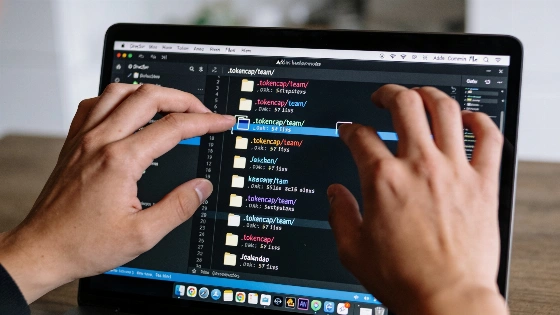
TokenCap v3.0 keeps all team-related records in the .tokencap/team/ directory of your repository. This includes files for team metadata, rules, decisions, approvals, contributor profiles, and architecture decision records (ADRs). Each rule, decision, or approval gets its own JSON file with a unique identifier. For instance, rules are saved as rules/rule-.json and approvals as approvals/approval-.json. The team.json file lists the team name and schema version. This per-record layout follows a repository-organization convention based on Git’s three-way merge behavior, not a special conflict-avoidance feature.
Why Use One File Per Record?
Keeping each rule or decision in a separate file helps avoid merge conflicts that come up when several contributors edit a single shared file. If two team members add rules on different branches, Git can merge both changes without trouble since each rule is in its own file. JetBrains documentation notes, "If these changes do not overlap (that is, changes were made to different lines of code), the conflicting files are merged automatically." The same logic applies to approvals: each approval is a new file that references the rule's ID, not an edit to the rule itself. The Git log then shows a clear record of when each approval was added. Still, if contributors edit the same record or shared metadata, manual resolution is needed because Git cannot automatically sort out overlapping changes or decide which team policy is correct. Git typically offers two main conflict-resolution options: keep the current branch’s version or accept the incoming branch’s version. Manual resolution is also possible.
Working with TokenCap Commands
TokenCap supplies CLI commands for managing team knowledge. You can initialize a team directory, add rules or decisions, approve rules, update contributor profiles, and sync ADRs. Each command writes a new file or updates a profile, and prompts you to commit the changes so they are shared through Git. TokenCap does not handle the commit itself; you must use git add and git commit to include the updated files in your repository. When merging branches, Git creates a merge commit that combines changes from your feature branch and main branch at the point where they split. This applies whether the changed objects are source files, JSON records, documentation, or policy artifacts.
Handling Profiles and Directory Visibility
Contributor profiles are the only exception to the append only rule. Each contributor has a single profile file, which is replaced when updated. To make sure Git tracks the .tokencap/team/ directory, TokenCap updates .gitignore to re-include only the needed subdirectory, which helps avoid accidental commits of generated artifacts. This keeps a clear and auditable record of team knowledge, but does not stop issues like duplicate identifiers or malformed JSON. Those problems require explicit validation and review controls.
What TokenCap Does Not Do
TokenCap records evidence of team rules, decisions, and approvals, but does not enforce them or settle disagreements. If two contributors propose conflicting rules, both files stay until the team decides and commits the outcome. The tool does not block commits based on rule status or resolve contradictions automatically. Git-based workflows still need human intervention when concurrent branches change the same content, and merge conflicts can happen during pull, rebase, or merge operations. For each file with conflicting changes, users must pick one version or resolve the conflict manually. Authority over which team policy or approval is correct comes from repository permissions, code review, branch protection, validation scripts, and documented adjudication procedures, not from the file layout alone. No government agency, regulator, or standards body has issued a decision about TokenCap, append-only team records, or repository-based approval systems, and there is no compliance certification or formal audit framework tied to this workflow.
Synchronizing Architecture Decision Records
The sync-adrs command copies existing architecture decision records into the adrs/ directory, using a hash of each ADR's content as the filename. Running this command more than once does not duplicate records. All changes are reviewed through standard Git workflows, such as pull requests. For more on Git merge behavior and conflict resolution, see the JetBrains Git conflict resolution guide.
For documentation and installation details, visit the official TokenCap site at tokencap.vansharora.app or the original article at dev.to.