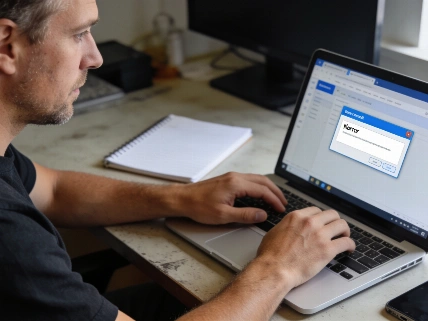
Amazon Prime Video brings original shows, live events, and options to rent or buy movies, but technical glitches can disrupt viewing on smartphones, computers, smart TVs, or streaming devices. The official Prime Video help center lists playback failures as a main support topic and offers targeted advice for error codes like 2063, 5004, 7235, and 7279. Problems may stem from account access, device software, browser playback, or protected-content handling. There’s no single cause. The troubleshooting approach starts with checking the device and app before contacting support, since the service relies on several software and hardware layers. Current support resources are available through Amazon’s Prime Video help system.
Resolving Streaming Errors and Buffering
Buffering, slow loading, and error codes like 1060 usually point to network or bandwidth issues. Amazon sets a minimum of 1Mbps for standard definition, 5Mbps for high definition, and 25Mbps for 4K UHD streaming. Running a speed test on your device shows if your connection meets these numbers. If speeds fall short, try another network or troubleshoot your Wi-Fi.
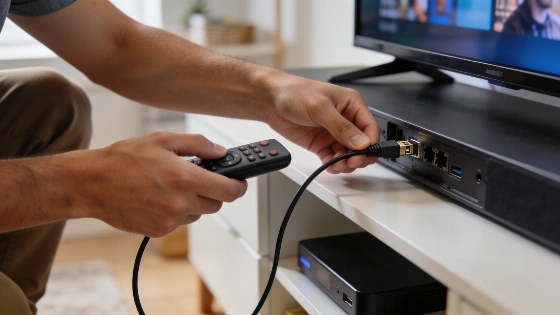
For streaming devices with TVs, Amazon’s Fire TV troubleshooting notes that the TV must support HDCP 1.4 for HD and HDCP 2.2 for UHD or HDR. HDCP is the copy-protection handshake between playback device and display. An incompatible TV, receiver, splitter, or HDMI cable can block protected video even if the internet works. Amazon’s fix is to check display and cable compatibility and swap out anything that doesn’t meet the spec. Restarting your device and reopening Prime Video can clear temporary bugs. Fire TV support treats restarting the streaming device, modem, and router as separate steps. Restart Fire TV through its settings or by unplugging its power adapter for one minute. Disconnect the modem and router for 30 seconds and restart them in order. Each layer—the playback device, home network, and internet—can cause the same generic playback error. If possible, try streaming over a mobile network like 5G to see if the problem is tied to your home internet.
Improving Video Quality and Managing Device Limits
Prime Video picks the best video quality automatically, but you can adjust it by clicking the gear icon during playback and choosing the highest setting. Higher quality uses more data and may buffer if your connection is slow. On smart TVs, motion smoothing features—labeled Action Smoothing, Auto Motion, Tru Motion, or Motion Flow—can change how movies and shows look. Turning off this setting in your TV's picture options may improve non-sports content.
Amazon allows up to two concurrent streams per account for the same title, with a total of three streams per account. If you hit this limit, extra devices can’t play content. To manage devices, go to the Prime Video website, open your profile, and navigate to Accounts and settings > Your devices to deregister unused devices. Too many background apps or browser tabs can also slow streaming, especially on computers and mobile devices. Closing unnecessary apps may help restore smooth playback.
Amazon’s console compatibility info shows that maximum Prime Video quality depends on platform and model. PlayStation 3 streams up to HD, Xbox One S and Xbox One X support Ultra HD, and other Xbox One models stream up to HD. These limits are device-specific, so having a UHD subscription or TV doesn’t guarantee UHD playback on every console or app. Compatibility details are listed on Amazon’s support page for games consoles with the Prime Video app.
Addressing Payment and Subscription Issues
Payment errors, including code 2063 and others like 2016 or 2021, can block rentals, purchases, or channel subscriptions. Check payment settings under Accounts and settings > Your account and make sure 1-click payment is enabled. The card for Prime Video purchases may differ from your main Prime subscription card. Confirm your card supports online transactions and has enough funds or credit. If a payment fails, try switching to another card in your account settings.
Fire TV instructions cover generic messages like “Something went wrong” and “Unable to play,” not just numbered error codes. The same guidance tells customers who recently bought a video to check “Your Orders” to confirm the transaction, since some playback failures link to purchase or entitlement status, not streaming bandwidth. Amazon puts transaction verification alongside network, software, and hardware checks in its troubleshooting steps.
Fixing Sign-In and Account Problems
Sign-in errors such as code 5004 may happen if your email or password is wrong, or if two-factor authentication is on and you can’t access your authentication device. Waiting a few minutes and trying again can help if Amazon's servers are the issue. If problems continue, use the Forgot your password option to reset your credentials. To sign out, select your profile icon and choose Sign-out, or deregister the device from Settings and accounts > Your devices if sign-out fails.
For parental controls, set up a Prime Video PIN under Settings and accounts > Parental controls. If the PIN fails, reset it in the same menu. The PIN applies to each device, so set it up separately on each one. Outdated app versions can also cause sign-in trouble; check for updates in the Play Store or App Store to make sure you have the latest version.
Solving Chrome Browser Playback Errors
Error code 7235 signals problems with Prime Video on Google Chrome or Chromebooks. To fix this, update Chrome by clicking the three-dot menu, selecting Help > About Google Chrome, and applying updates. Then, go to chrome://components in the address bar, find the Widevine content decryption module, and check for updates. This module is needed for DRM-protected content. If issues persist, check Chrome's site settings under Privacy and security > Site settings > Additional content settings > Protected content IDs and make sure protected content playback is enabled for Prime Video.
Dealing with App Freezes and Crashes
If the Prime Video app freezes or crashes often, updating to the latest version can help. On smart TVs, turning on auto-update in Google Play Store settings can prevent outdated app problems. Clearing the app cache and storage may fix persistent crashes, but clearing storage means you’ll need to sign in again. If these steps don’t work, uninstall and reinstall the app. Sometimes, waiting for a future software update is the only fix if the issue is due to a broader compatibility problem.
Additional Troubleshooting Steps and Current Status
Fire TV support instructions advise checking that Fire TV runs the latest software and clearing the Prime Video app cache and data, since outdated firmware and stale app state are known support factors. The guidance doesn’t guarantee any single step will fix every error; it lists these as diagnostic and corrective options. Outage-monitoring services like Downdetector reported no current problems with Amazon Prime Video at the time of their status page. Still, a service can look operational overall while individual users face local Wi-Fi, device, account, display, or app issues. The official advice remains device-level and account-level troubleshooting, with escalation to Amazon support if those checks don’t solve the problem.
No regulatory ruling, court decision, government investigation, or formal enforcement action specifically addresses the Prime Video troubleshooting practices described here. Amazon’s help pages are operational support documents, not regulatory filings or independent audits. For the latest troubleshooting steps and device-specific advice, check the official Amazon Prime Video Help Center.