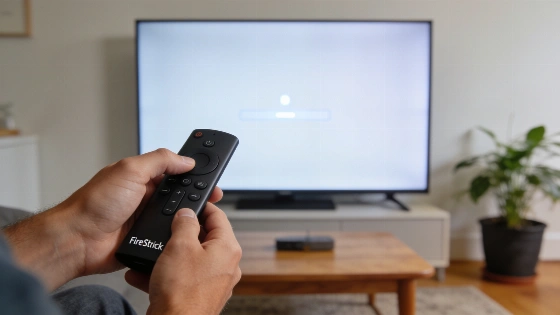
Sportz TV IPTV channels sometimes fail to load on FireStick devices, leaving users unable to stream. Playback interruptions can stem from application-state corruption or network connectivity problems. Device software glitches, unavailable service infrastructure, or expired credentials may also block channels from loading as expected.
Resetting the Sportz TV App on FireStick
Resetting the Sportz TV app often helps restore channel access. Begin at the FireStick home screen and select Settings from the top menu. Go to Applications and choose Manage Installed Applications. Find Sportz TV in the list and open it. When the options menu appears, select Clear Data. Confirm by clicking Clear Data again in the next window. This step erases stored information and may require you to sign in again, so keep your login credentials ready. If the storage section shows Data: 0 B, the app has been reset. Check the cache section too; if it does not display Cache: 0 B, select Clear Cache to remove any leftover cached data. Amazon Fire TV's official troubleshooting guidance backs this process, recommending clearing app data and cache to fix streaming issues.
Updating DNS Settings in the Sportz TV App
After resetting the app, launch Sportz TV on your FireStick. On the login screen, locate the UPDATE DNS button at the bottom right and click it. Enter your Sportz TV service username and password, and type any name in the Any name field. Once logged in, you should be able to stream channels again. These steps are widely suggested for IPTV troubleshooting, though Amazon's official documentation does not specifically confirm the presence of an "UPDATE DNS" button or guarantee that this method will restore service.
Additional Troubleshooting Tips
If these actions do not fix the problem, check your internet connection and make sure your FireStick software is current. Amazon Fire TV support advises verifying that your device runs the latest software version and restarting both the Fire TV and your modem or router. If issues persist, contact Sportz TV support for more help. Users should avoid entering credentials into unofficial replacement apps or websites and reach out to the service’s verified support channel for account or service-side concerns. For more device-level troubleshooting, see Amazon Fire TV Help.