Game developers and those learning interactive programming on Windows 11 often rely on controller input for testing and gameplay. The Xbox 360 controller remains a go-to device, but getting it to work with a modern PC means following the right setup steps and knowing how to handle common issues. Microsoft’s XUSB driver layer, using the xusb22.sys file, supports Xbox-compatible controllers like the Xbox 360 model and comes built into Windows drivers.
Wired Xbox 360 Controller Setup
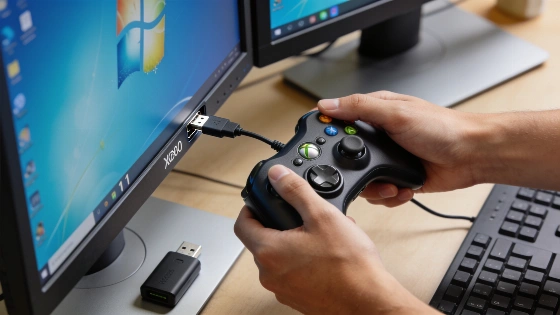
To use a wired Xbox 360 controller, plug its USB cable directly into a USB port on your PC. Skip unpowered USB hubs at first, since they can cause detection problems. Windows 11 usually spots the controller and loads the driver automatically. If it doesn’t, go to Settings > Windows Update and hit Check for updates to prompt a driver search. Microsoft’s support notes that xusb22.sys is the driver for XUSB controllers, and it’s already included with Windows, so manual driver installs are rarely needed.
After connecting, test the controller by pressing Win + R, typing joy.cpl, and hitting Enter. Pick the controller, click Properties, and check that all buttons and sticks respond. If the controller keeps disconnecting, unplug it, wait, and try a different USB port. Direct connections to the PC work better than hubs. Ongoing problems could point to a bad cable, low power, a faulty USB port, or a failing controller.
Wireless Xbox 360 Controller Setup
Wireless Xbox 360 controllers need a compatible Xbox 360 Wireless Receiver for Windows. This receiver is different from the newer Xbox Wireless Adapter for Windows and can’t be swapped. Plug the receiver into a USB port and install any drivers offered by Windows Update. To pair, press the receiver’s connect button, then the Xbox Guide button and the controller’s connect button. Wait for the lights to stop flashing, which means the connection worked. Test the setup with joy.cpl or in your game’s controller settings.
Don’t try to pair a wireless Xbox 360 controller through Windows Bluetooth settings. It doesn’t use Bluetooth like newer controllers. If the receiver lights up but doesn’t work, there could still be a driver or hardware problem.
Troubleshooting Detection and Driver Issues
If Windows 11 doesn’t detect your controller or receiver, start with basic USB checks: unplug and reconnect, try another USB port (preferably on the PC itself), and avoid unpowered hubs. If you can, test the controller or receiver on another computer to rule out hardware failure. Check cables and the receiver for visible damage.
For driver problems, use Start > Settings > Windows Update > Check for updates to get any available updates. If the device still isn’t found, go to Start > Settings > Bluetooth & devices > Devices > Add device to try manual discovery. This won’t turn a wireless Xbox 360 controller into a Bluetooth device; you still need the right receiver.
In Device Manager, right-click Start and pick Device Manager. Expand the hardware category and look for warning icons, unknown devices, or entries that only show up when the receiver is plugged in. Right-click the entry, choose Update driver, and select Search automatically for updated driver software. If nothing turns up, pick Search for updated drivers on Windows Update. Use View > Show hidden devices if you don’t see the device entry.
Microsoft’s support docs warn against manually deleting files from C:\Windows\System32\drivers or the Driver Store. Doing so can cause unpredictable problems and break controller support or other devices. The safer route is to identify the device and its driver package in Device Manager or with Plug and Play tools before disabling or removing anything. Plug and Play tools like pnputil only list driver packages not included with Windows, so the built-in Xbox controller driver may not show up as a removable third-party oem#.inf package. In these cases, Microsoft recommends disabling the specific device instance instead of trying to remove the driver package. This lowers the risk of deleting a shared or built-in Windows driver that other devices might need.
Reinstalling or Rolling Back Drivers
If your controller used to work but now shows errors or won’t respond, unplug it from USB before uninstalling the driver in Device Manager. Right-click the device, pick Uninstall device, confirm, and restart your PC. Plug the controller back in after Windows restarts so it can reinstall the driver automatically. If you see the Delete the driver software for this device option, use it only if you want to remove the driver package completely, since this could affect other devices. Microsoft’s pnputil workflow can list device drivers and, when needed, remove a third-party package with the /delete-driver and /uninstall options. Always confirm the device instance path and make sure the selected INF package is tied to the Xbox controller.
If a controller stops working after a Windows or driver update, try rolling back the driver. In Device Manager, right-click the device, pick Properties, go to the Driver tab, and choose Roll Back Driver if it’s available. Restart Windows and test the controller again. The rollback option only appears if a previous driver version is stored.
Common Problems and Solutions
SymptomLikely checks
Wired controller does nothing | Try another USB port and cable, run Windows Update, and inspect Device Manager for errors.
Wireless receiver lights up but controller will not connect | Verify it is an Xbox 360 receiver, reinstall or update its driver, and repeat the pairing process.
Windows sees an unknown USB device | Disconnect, restart, try a direct USB port, and update or reinstall the device in Device Manager.
It worked until recently | Use Device Manager to roll back the driver if possible.
It works in Windows but not in one game | Test input with joy.cpl and check the game's controller settings. The issue may be game-specific.
Recent Issues and Update Compatibility
On October 29, 2026, a Microsoft Q&A report described an Xbox 360 wireless controller that stayed visible to Windows and worked in joy.cpl and the Xbox app but stopped working in games after installing Windows update KB5127936 on build 26300.9711. The user said uninstalling KB5127936 brought back game functionality, pointing to a possible update-related compatibility problem. Microsoft Q&A troubleshooting suggests checking if Windows recognizes the controller before blaming a specific game, since this helps pinpoint whether the issue is with hardware detection, the Windows input stack, a game’s controller layer, or an update. The same report noted that removing the update restored function. This is a user-submitted report, not an official Microsoft security advisory or confirmed product-wide incident.
Another Microsoft Q&A entry mentioned a Windows 11 25H2 issue where Xbox controller XInput HID devices would disconnect or vanish at times, even after a Windows repair. Feedback was sent through the Windows Feedback Hub, but there’s no official incident number or fix timeline. This problem could affect more Xbox-compatible controllers if confirmed by further reports.
Regulatory and Support Status
No government regulatory decision, court ruling, product-safety recall, or competition action about Xbox 360 controllers or their Windows 11 compatibility appears in authoritative sources. Microsoft’s support system offers technical help and troubleshooting, but claims about required compatibility standards, regulatory certification, or an official Windows 11 support cutoff aren’t backed by any formal regulatory process. Microsoft Q&A entries count as community reports unless clearly marked as official statements.
Frequently Asked Questions
Can I connect an Xbox 360 wireless controller to Windows 11 with Bluetooth? No. A standard Xbox 360 wireless controller needs a compatible Xbox 360 Wireless Receiver for Windows. The regular Windows Bluetooth pairing screen doesn’t support this controller, and the receiver is not the same as the newer Xbox Wireless Adapter for Windows.
Why does my wired Xbox 360 controller not appear in Windows 11? Try a different USB port, avoid unpowered hubs, check the cable, run Windows Update, and look in Device Manager for unknown devices or warning icons.
For more technical details and troubleshooting, see Microsoft’s official support documentation and community Q&A forums.