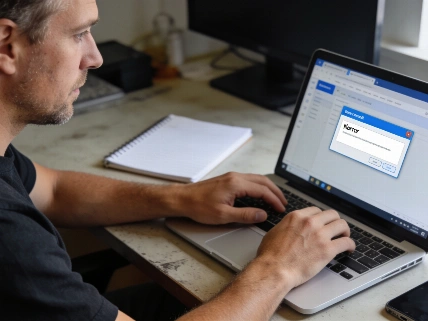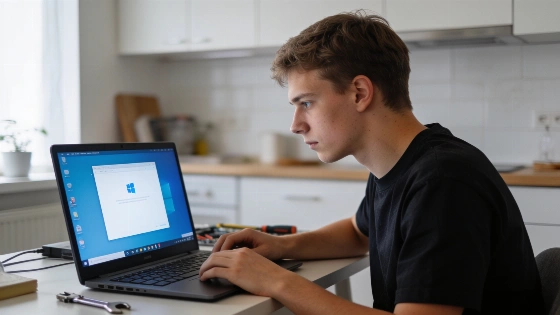
When Avast Antivirus or related applications refuse to open on Windows 11, users often see error messages like "Sorry, we've crashed" or "Well, this is embarrassing." These problems usually trace back to conflicts with Windows services or settings that interfere with security software starting up as expected.
Understanding the Problem
If Avast products such as Avast Antivirus, SecureLine VPN, Cleanup, AntiTrack, Driver Updater, or BreachGuard fail to load, users might see crash notifications or blank main windows. Official Avast support notes these issues are uncommon, but they can happen if required Windows services are disabled or if the installation is damaged.
Microsoft’s Windows 11 documentation points out that users can repair installed apps through Settings → Apps → Installed apps. This tool aims to fix launch failures without forcing a full Windows reinstall. Microsoft separates Repair—the first, non-destructive step—from Reset, which can wipe local app data or settings. Microsoft Q&A guidance states, “Microsoft documents Repair as the non-destructive first choice and Reset as the next step.” (Microsoft Learn).
Repairing Avast Applications on Windows 11
Start by repairing the affected Avast product. This process restores missing or broken files and resets key settings, but keeps your data and preferences. Use these steps:
- Open Start and go to Settings → Apps → Installed apps.
- Find your Avast product, click the three-dot menu, and choose Advanced options.
- If you see the option, select Terminate to stop the app, then click Repair.
- Wait for the repair to finish. This can take a few minutes.
- If prompted, restart your computer. If not, click Done.
This repair is different from uninstalling, since it tries to keep your installation and settings intact. After finishing, try to open Avast again. If the error remains, move on to further troubleshooting.
Reinstalling Avast for Persistent Issues
If repairing does not fix the issue, a clean reinstall is the next step. This removes all program files and settings, then installs a fresh copy. It can resolve deeper problems from corrupted installs or ongoing service conflicts. To reinstall:
- Uninstall your current Avast Antivirus. For step-by-step help, see the official Avast support articles for Avast Premium Security or Avast Free Antivirus.
- Restart your PC after uninstalling.
- Download and install the latest Avast version. Follow the official guide for your edition.
Microsoft’s guidance stresses that Reset is not the same as Repair, since Reset can erase local app settings or data. This matters for security software, where user preferences, account info, VPN setups, or browser protection could be lost. Before removing a security app, record your licenses, account details, custom settings, and recovery codes.
Additional Troubleshooting for Other Avast Products
For SecureLine VPN, Cleanup Premium, AntiTrack, Driver Updater, and BreachGuard, use similar steps. Make sure the Windows service for each product is set to start automatically. If it is stopped, start it manually and restart your PC. If problems continue, uninstall and reinstall the affected app.
Escalating Beyond Application Repair
Microsoft’s troubleshooting advice says that if several unrelated apps show the same failures—like closing right away or refusing to load—users should repair each app first, then check Windows components if issues persist. Microsoft Q&A guidance states, “Repair or reset each affected app first, then repair Windows components if all three apps still close immediately.” This helps tell if the problem is with Avast or with Windows itself. If only Avast fails, focus on its installation and services. If more apps are affected, look at the operating system, Microsoft Store, or system files.
In rare cases where repair and reinstall do not help and multiple apps are affected, Windows 11 offers a recovery option called Fix problems using Windows Update. Access this through Settings → System → Recovery and select Reinstall now. This reinstalls the current Windows version to repair system files and components, while keeping your apps, files, and settings. Microsoft recommends backing up important files before starting system recovery (Microsoft Learn).
Practical Tips for Learners
Learning to troubleshoot software installation and service problems is a useful skill for anyone interested in system administration or software development. These steps show how to diagnose issues, use Windows tools, and follow official documentation to fix technical errors. Practicing these methods can build confidence in managing software and handling support cases.
Corporate and Regulatory Context
Gen Digital, the parent company linked to Avast, reported revenue of about $5.00 billion for the fiscal year ending April 3, 2026, up from $3.94 billion the year before, based on third-party financial data. No government, EU, competition authority, or data-protection regulator has issued a decision or enforcement action about Avast’s Windows 11 loading failures. There have been no confirmed Windows 11 outages, Microsoft security advisories, or product-wide Avast incidents tied to these error messages. General troubleshooting remains the main approach for resolving these problems.