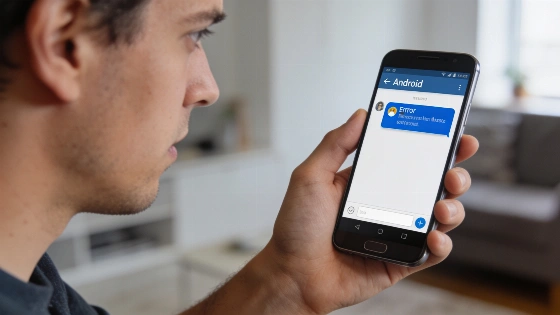
Seeing a 'Failed to Download Attachment From Multimedia Message' error on an Android phone points to trouble with network access, app settings, or device configuration. This guide lays out practical steps for restoring MMS attachment downloads and keeping messaging working smoothly.
Understanding the MMS Download Error
Multimedia Messaging Service (MMS) works differently from SMS and RCS because it depends on carrier-managed multimedia delivery, not just a text-based cellular path. The Google Support Community notes that messaging apps may handle conversations in separate ways based on recipient setup and message type, such as distinguishing between single SMS and group MMS. This explains why a device might send or receive SMS but fail to grab an MMS attachment, since multimedia uses extra carrier and app logic. There’s no single cause for failed MMS downloads; connectivity, carrier provisioning, app behavior, and device setup all play a role (Google Support Community).
Google’s support docs treat Rich Communication Services (RCS) as a separate service from SMS and MMS. Users are told to enable RCS chats on Android, but if RCS is missing, disconnected, or unsupported by the other device or carrier, chats can fall back to SMS or MMS. So, a media-transfer failure may reflect the fallback channel, not a general Messages app problem (Google Support Community).
Check and Switch Data Connection
Stable internet is needed for MMS downloads. If this error appears, try switching your data mode. If you’re on Wi-Fi, move to mobile data, or the other way around. After changing, try downloading the MMS again. Google’s support results show that message delivery can depend on recipient type, group setup, and whether RCS, SMS, or MMS is available, so knowing the message type and current network is a key step.
Restart Your Android Device
Temporary system glitches can block MMS downloads. Restarting the phone can clear up minor issues. Save any unsaved work before rebooting to avoid losing data.
Adjust Auto-Download Settings in Messages App
Most Android messaging apps have an auto-download or auto-retrieve setting for MMS. In Google’s Messages app, you can change this by opening the app, tapping your profile icon, going to Messages settings, picking your SIM card, and toggling the Auto-download MMS option. Turning this off and on may fix download problems. The Google Support Community points out that group MMS is a different mode from single SMS, and suggests choosing "Send an MMS reply to all recipients (group MMS)" when testing SMS/MMS in group chats.
Change Preferred Network Mode
Your phone may use 4G, 3G, or 2G to connect to your carrier. If one mode isn’t working, switching to another can help restore MMS downloads.
Clear Messages App Cache
Corrupted cache in the Messages app can block attachments from downloading. Clearing the app’s cache removes temporary files but keeps your messages. This often resolves stubborn MMS errors.
Try a Different Messaging App
If the default Messages app keeps failing, try installing another messaging app from Google Play. Using a different app may get around software-specific bugs and restore MMS downloads.
Reset Access Point Names (APN)
Access Point Names (APN) let your phone connect to your carrier’s network. Wrong APN settings can stop MMS downloads. Resetting APN to default can fix MMS connectivity issues. No regulatory or carrier-policy ruling on failed Android MMS downloads appears in official records, so APN troubleshooting remains a user-level fix.
Update Your Android System
System bugs can disrupt MMS downloads. Installing the latest Android updates brings important fixes and boosts device stability. Android’s official security bulletins include telephony components among patched areas, showing that the telephony stack gets regular security attention. The November 2026 bulletin lists several CVEs under “Telephonycore,” highlighting the need to keep telephony software up to date as part of device maintenance (Android Security Bulletin—November 2026).
Factory Reset as a Last Resort
If nothing else works, a factory reset may be needed. This wipes all personal data and returns the device to its original settings. Back up important files first, since all stored data will be erased.
Restoring Reliable MMS Downloads
Following these steps helps most users fix the 'Failed to Download Attachment From Multimedia Message' error and regain MMS attachments on Android. Each fix targets a specific cause, from network setup to app performance and system updates. Google-hosted support threads show that SMS/MMS and RCS can behave differently in real-world messaging, and working media delivery on one protocol doesn’t mean every transport is running smoothly. Users should check if the failed item is an MMS, an RCS message, or a group message routed through another protocol, since this diagnostic step is more reliable than assuming every media failure comes from Wi‑Fi, mobile data, cache, or APN issues.