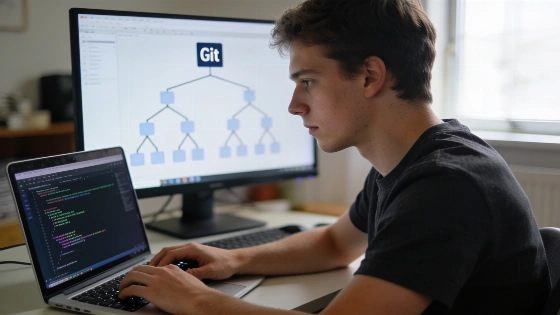
Developers rely on Git branches to separate new features, bug fixes, or experimental work from the main project. This approach keeps code organized and helps avoid accidental changes to stable code.
How Git Branches Work
In Git, a branch is a movable pointer to a specific commit in your project history. Each commit captures a snapshot of your files at a certain point. Creating a branch adds a new pointer to the current commit, but does not duplicate files. This keeps branches lightweight and fast. Git's reference model treats branches as references to commits, not as separate copies of working-tree files. The official Git project maintainers note that this design lets you create and manage branches with little impact on disk space or performance.
Creating and Switching Branches
To begin a new line of development, create a branch. The command git branch branch-name sets up a branch but does not move you onto it. Many beginners miss this and end up committing changes to the main branch. To create and switch to a new branch in one step, use git switch -c branch-name. The older git checkout -b branch-name command does the same, but switch is clearer for this use.
# List local branches
git branch

# Create a branch called feature-login
git branch feature-login

# Create and switch in one step
git switch -c feature-login

# Older method
git checkout -b feature-login
Pick branch names that describe your work, like fix-header-bug or feature-login. This helps you track changes and work with others.
Moving Between Branches
Switching branches updates your working directory to match the latest commit on the branch you select. Use git switch branch-name to move to another branch, or git switch - to return to your previous branch. The older git checkout branch-name command also works for switching.
# Switch to main branch
git switch main

# Switch to previous branch
git switch -
Commit or stash your changes before switching. If you have uncommitted work that conflicts with the target branch, Git may block the switch or carry changes over, which can cause confusion. Running git status before switching is a good habit. The difference between creating a branch and switching to it matters for keeping a clean project history, as Git documentation maintainers point out.
Merging Branches
After finishing work on a branch, merge it into another branch, usually main. First, switch to the receiving branch, then run git merge branch-name. If the receiving branch has not changed since you branched off, Git does a fast-forward merge and moves the pointer forward. If both branches have new commits, Git creates a merge commit to tie the histories together.
# Move to main branch
git switch main

# Merge feature-login into main
git merge feature-login
If Git finds conflicting changes, it will pause and mark the files with conflicts. Edit these files to resolve the issues, then use git add and git commit to finish the merge. The official Pro Git book offers diagrams and explanations of branching and merging.
Essential Branch Commands
CommandDescriptiongit branch | List all local branches
git branch name | Create a branch without switching
git switch -c name | Create and switch to a new branch
git switch name | Switch to an existing branch
git merge name | Merge the specified branch into your current branch
git branch -d name | Delete a branch that has been merged
git branch -D name | Force delete a branch, even if not merged
git push -u origin name | Push a branch to the remote and set upstream
Deleting Branches
After merging, remove branches you no longer need to keep your repository tidy. Use git branch -d branch-name for a safe delete—Git will refuse if the branch has unmerged work. To force deletion, use git branch -D branch-name, but know that unmerged commits may be hard to recover. You cannot delete the branch you are on, so switch to another branch first.
# Safe delete
git branch -d feature-login

# Force delete
git branch -D feature-login
Working with Remote Branches
To share your branch or back it up, push it to a remote repository like GitHub. The first push should use git push -u origin branch-name to set the upstream link. After that, git push and git pull will work as expected. To delete a remote branch, use git push origin --delete branch-name. For a list of remote branches, run git branch -r.
# Push and set upstream
git push -u origin feature-login

# Delete remote branch
git push origin --delete feature-login
The -u flag sets the upstream branch, making future pushes and pulls easier. This is needed only on the first push for each branch.
Common Beginner Mistakes
- Committing directly to main instead of using a branch, which can risk the stability of your main codebase.
- Forgetting which branch you are on, leading to misplaced commits. Use git status to check your current branch before committing.
- Letting old branches pile up, which can clutter your repository and make merges harder.
- Using -D to delete branches by default, which can result in lost work if the branch was not merged.
- Picking vague branch names that do not describe the purpose of the work, making it harder to track changes later.
Frequently Asked Questions
What is the difference between git branch and git switch -c?
git branch name creates a branch but leaves you on your current branch. git switch -c name creates the branch and moves you onto it, so your next commits go to the new branch. Git project maintainers document the difference, emphasizing whether a command creates a reference, changes HEAD, or updates the working tree.
Can I recover a deleted Git branch?
If the branch was merged, its commits remain in the main branch. If you force deleted an unmerged branch, git reflog may help you find the last commit and recreate the branch, but recovery is not guaranteed.
Is there a limit to the number of branches in a Git project?
Git branches are lightweight pointers, so you can have many without much impact on disk space. The practical limit is how many you can manage well—delete finished branches to keep your project organized. Official documentation explains that creating another branch does not create an independent copy of the entire project, which is why branches remain efficient even in large repositories.
Should I use a separate branch for every task?
Yes, using a branch for each feature, fix, or experiment keeps your work organized and makes it easier to review and merge changes safely.