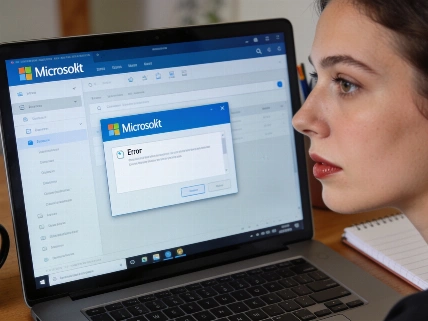
When Microsoft Outlook throws up error codes like [pii_email_11fe1b3b7ddac37a], users often find themselves unable to send or receive messages. These codes show up without much context, so figuring out where to start can be tough. Microsoft’s official troubleshooting points to possible issues with the local Outlook profile or account setup, Office installation, data files, or add-ins. There’s no single fix for all cases. The best way forward is to check each area in turn, making sure your data stays safe as you go.
Understanding Outlook PII Email Errors
Outlook pii_email errors are internal alerts from the desktop app when it hits a problem it can’t describe in detail. The "pii_email" prefix might look like it refers to personal information, but Microsoft’s support docs don’t confirm these are formal diagnostic codes or that “PII” means personal information. Instead, these codes serve as internal references. Users need to check Outlook’s configuration, data files, or installation for issues. No regulator or agency treats these codes as privacy incidents. Microsoft’s troubleshooting guides focus on profile, data-file, add-in, account, and installation checks.
Main Causes of PII Email Errors in Outlook
Several problems can set off these errors. Microsoft support lists these as common triggers:
- Corrupted or outdated Outlook installation: This can happen after a failed update or Office repair.
- Corrupted Outlook profile: Profile corruption might stop Outlook from starting or connecting to mail servers. Microsoft suggests making a test profile through Control Panel → Mail → Show Profiles to see if the problem is with the profile or something else. Always back up PST data before removing a profile, since deleting it can affect local data files.
- Invalid or damaged data-file paths: Outlook may keep pointing to an old data-file location, especially after reinstalling Office or changing profiles. Microsoft advises against storing active PST and OST files in OneDrive-synced folders, since syncing can disrupt Outlook’s access to those files.
- Conflicting or duplicate accounts: Multiple accounts or wrong credentials can block mailbox access.
- Third-party add-ins: Add-ins sometimes cause startup failures or errors. Microsoft recommends running Outlook in Safe Mode to check for extension-related problems.
Step-by-Step Solutions to Fix Outlook PII Email Errors
- Update Microsoft Outlook: Open any Office app, go to File > Office Account > Update Options > Update Now, and let the update finish. Restart your computer and try Outlook again.
- Clear Outlook Cache and Temporary Files: Close Outlook, delete everything in the RoamCache folder and any temp files, then reopen Outlook.
- Remove Duplicate Accounts: In Outlook, head to File > Account Settings > Account Settings and remove any duplicate or outdated accounts. For account-specific issues, use the built-in repair option by selecting the account and choosing Repair.
- Repair or Reinstall Microsoft Office: Use Windows Settings to change your Office installation, picking Quick Repair or Online Repair as needed. Online Repair might reinstall or fix Office parts, so close all Office apps and restart Windows when done. Microsoft Q&A support points to Online Repair as a general fix for Office installation problems.
- Check SMTP Port Settings: SMTP port conflicts aren’t a confirmed cause of every Outlook pii_email message, but checking your SMTP port settings and turning off any programs using the same ports can help with account connection issues.
- Test with the Outlook Web App: Sign in at outlook.com to see if the error shows up there. If it doesn’t, the problem is likely on your device.
- Disable Conflicting Add-ins: Start Outlook in Safe Mode by running outlook.exe /safe. If Outlook works in Safe Mode, go to File → Options → Add-ins → Manage: COM Add-ins → Go, then turn off add-ins and turn them back on one by one to find the culprit. Microsoft says to "disable rather than remove them" during testing.
- Create a New Outlook Profile: Use Control Panel → Mail → Show Profiles to make a new profile and set it as default. Always back up PST files before removing or replacing a profile. Microsoft support stresses, "Do not delete or rebuild the current Outlook profile until you have created and tested a backup." If the new profile works, the old one was likely corrupted or set up wrong.
- Contact Microsoft Support: If none of these steps work, contact Microsoft support with the error details. Microsoft also offers advanced diagnostics through the Microsoft Get Help app for stubborn or complex problems.
Preventing Future PII Email Errors
- Keep Office apps updated.
- Always close Outlook properly before shutting down your computer.
- Use only essential add-ins.
- Check your account list each year and remove duplicates or outdated entries.
- Back up Outlook data files to avoid losing data if something goes wrong. Microsoft Q&A support says not to store active Outlook PST and OST files in OneDrive-synced folders, since syncing can disrupt Outlook’s access to those files.
Frequently Asked Questions
- What does a [pii_email_xxxxxxxxxx] code mean? It signals a general internal error in Outlook, not a specific issue. Microsoft’s docs don’t confirm these are formal diagnostic codes or that “PII” means personal information.
- Will fixing these errors delete my emails? Using the recommended steps shouldn’t delete your emails, but it’s always smart to back up data files. Microsoft support advises saving important PST data before changing profiles.
- Why do these errors appear after an Office update? Failed or incomplete updates can leave Outlook files out of sync, causing errors. Invalid or damaged Outlook data-file paths can also result from reinstalling Office or changing profiles.
- Can antivirus software cause these errors? Some antivirus add-ins might interfere with Outlook and trigger error codes. Testing in Safe Mode can help spot add-in issues.
- How can I tell if the error is on my computer or with my email provider? Testing your account in the Outlook web app can show if the problem is local or account-related. If the error doesn’t show up in the web app, the issue is probably with your local Outlook setup.
- Do these errors affect Outlook on Mac or mobile? These errors are specific to the Windows desktop version of Outlook. Troubleshooting steps may be different for other platforms.
For more on troubleshooting Outlook errors, Microsoft’s official support resources and Q&A forums offer step-by-step help for both everyday users and IT professionals. The troubleshooting process depends on your Outlook version and setup, with different steps for classic Outlook, Microsoft 365, POP/IMAP accounts, PST/OST files, and third-party add-ins. If Safe Mode, repair, and profile testing don’t fix the problem, Microsoft recommends running the Classic Outlook Advanced Diagnostics troubleshooter through Microsoft Get Help. For further reading, see Microsoft Learn Q&A.